
Getting your Computer Ready
- System Requirements: Microsoft Windows® computer (Windows 10 or 11 a Chromium-Based browser(i.e. Chrome, Edge, Opera, etc.)
- Internet Connection: A good internet connection is vital to your online meeting. DepoDash recommends 10 Mbps for both download and upload speeds.
Connection Readiness Check
Run this test to confirm your network is suitable for live proceedings.

- Choose your Audio/Video Device. IMPORTANT!Setting up your audio and video/webcam devices is vital to your online meeting.
Starting a Meeting (in-person or remote)
Meet Now (On Demand)
- Start a meeting immediately. This will take you into the meeting room.

Set up a future meeting (Scheduled)
- Click the Schedule a Meeting

- Name the meeting and set up the details of the meeting.
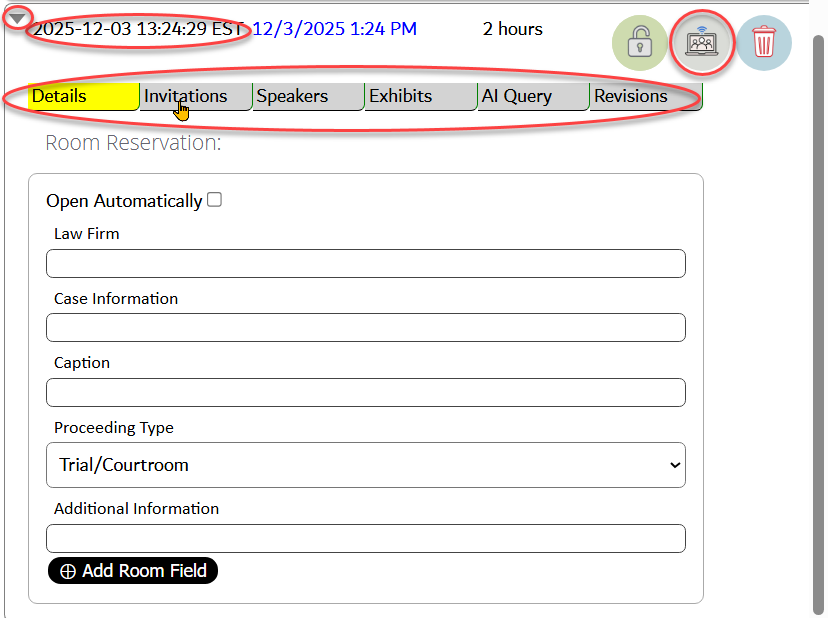
Add Speakers
- When participants are in the same room (in-person and hybrid meetings), multi-speaker diarization is used. You may populate the speakers prior to or during a session.
- Each speaker in the room should be labeled, and their roles should be defined. It is possible to have multiple connections, each with multiple "speakers" present.
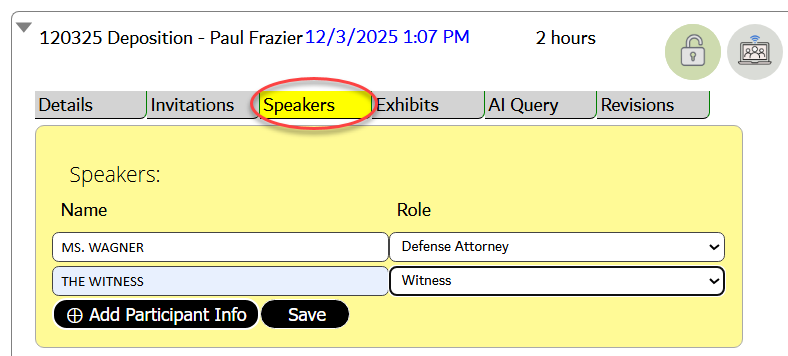
Invite Remote Attendees
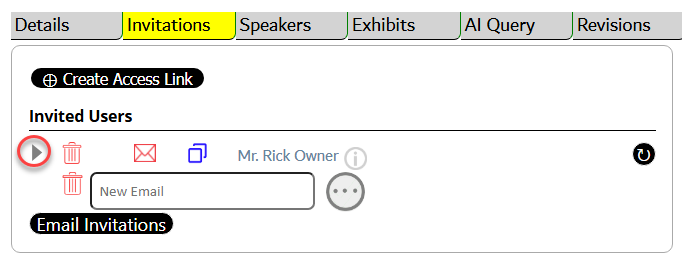
Type in each attendee’s email address and choose their role, for example, attorney or witness. If the attendee is not yet a registered user, enter their information first.
- If the attendee is a registered user, click the green check mark.
- You can also modify each attendee’s privileges using the expand arrow (circled in red above).
- Send invitations to individual users by selecting the envelope icon, or send invitations to all users using the “Email Invitations” button.
- Your meeting has now been created.
Joining a meeting for remote users
- Invited users can join a meeting using the link in the host's email invitation.
- Registered users can log in and choose the room they’ve been invited to..

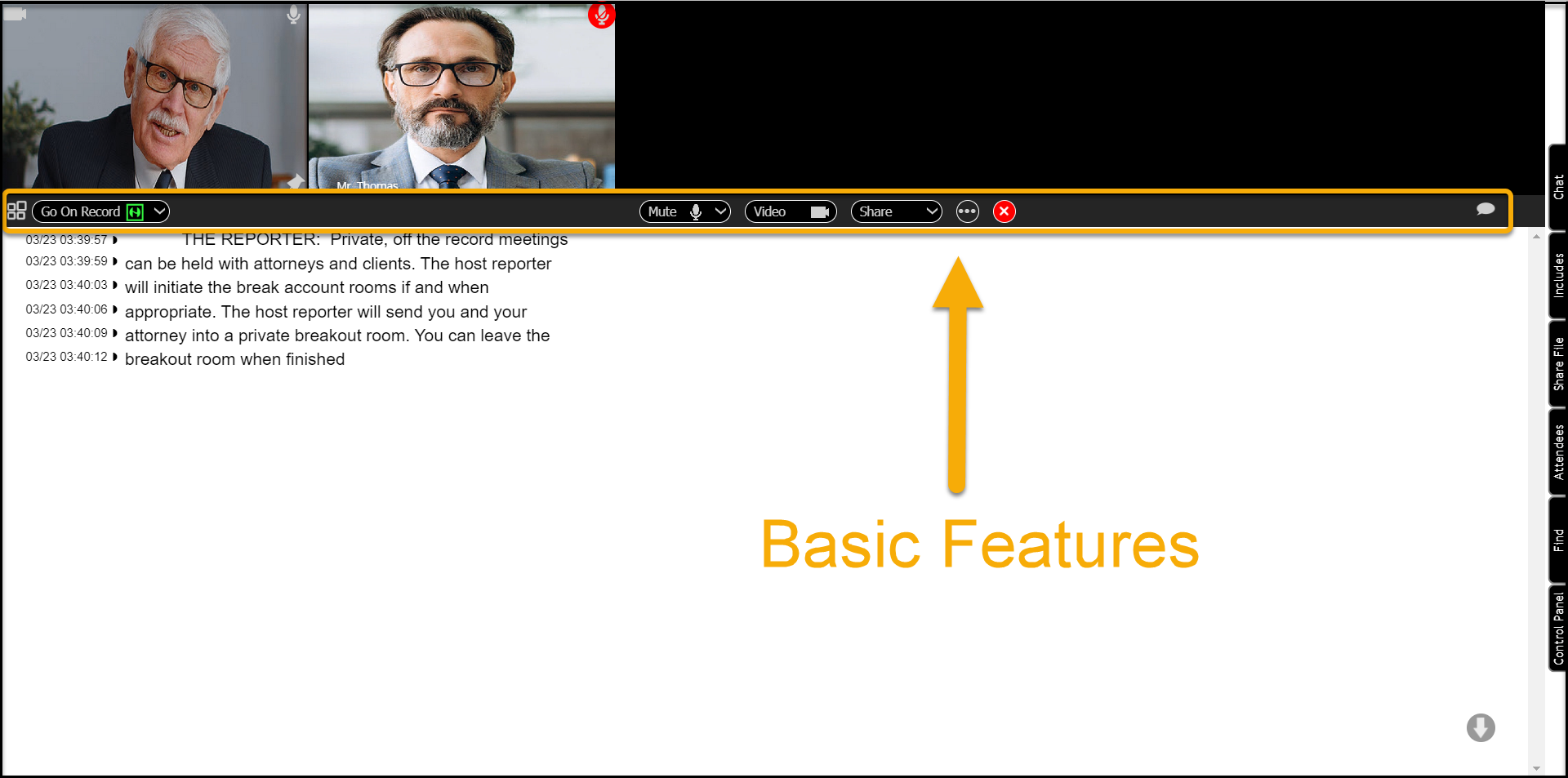
Basic Features
(Watch the Basic Features video)
-
Automatic Speech Recognition (ASR)
DepoDash uses its proprietary Automatic Speech Recognition (ASR) to record everything that is “On the record.” When the court reporter or host places the meeting on the record, ASR transcribes the spoken words into text in transcript format. Audio and video are recorded when the meeting is on record.
-
Change Conference Position

Use the change conference position icon to rearrange the layout of the videos and transcript.
-
On the Record Indicator
 -OR-
-OR- 
Green indicates the conference is connected. Red indicates conference audio and video are being recorded. When recording, the red audio icon will be flashing.

You can turn off your audio and camera using these icons.
-
Pin the Witness
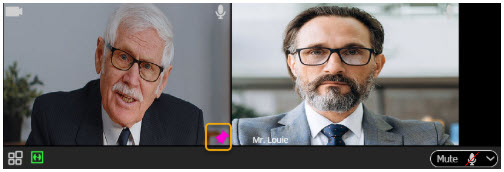
In normal operation, the person talking automatically moves to the leftmost or largest video position, depending on your layout. You can also “pin the witness” or any other video so that it stays in the number one primary position. This helps you keep focus on any particular participant, for example, the witness or questioning attorney. Select the pin icon in the lower-right corner of the speaking person’s video.
-
Picture-in-Picture
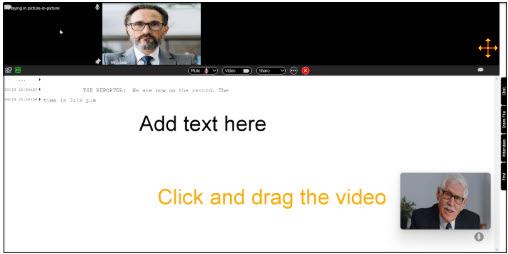
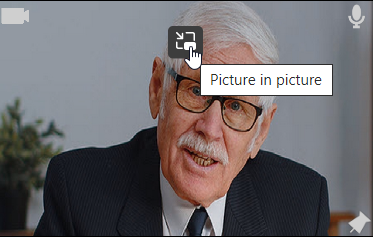
Use picture-in-picture to move a participant’s video outside of the main conference area. This is useful when exhibits are being shared in order to focus on participants. Picture-in-picture videos can also be moved to a second monitor for optimal viewing.

-
Share file and Share screen

Use the Share Screen option to share exhibits or use the Share file option to upload and publish exhibits for attendees to download. Share options are based on roles and permissions. As a witness or host, you may not need these permissions.
-
Chat
 Use the chat icon to chat with all participants or individuals privately.
-
Scroll to the end of the document.
 After scrolling through the document, use this icon to resume automatic scrolling of testimony.
-
Settings
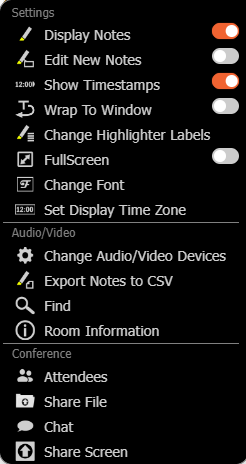
 Use the settings button for more options and settings. These features are available based on roles and privileges.
-
Leave or Exit Conference
 When you are finished, use the leave room icon to exit the meeting.
Witness, Deponent, and Observer Features
(Watch the Witness, Deponent, and Observer Features video)
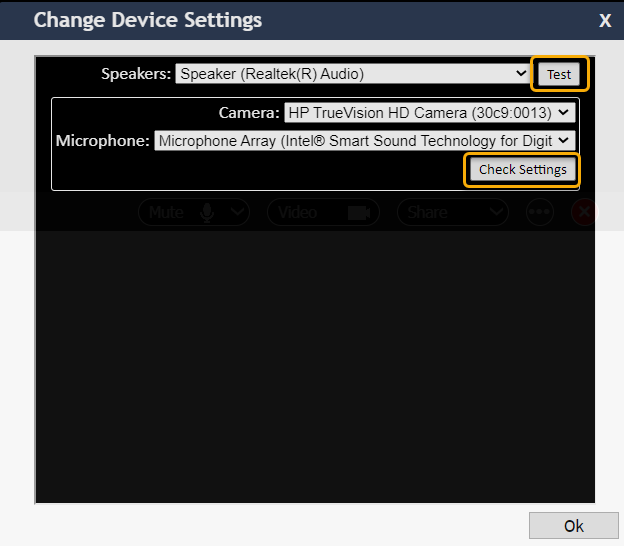
Remember: Adjust or change your audio/video devices as needed.
Be sure to choose the right speakers, microphone, and
webcam for the meeting. These can be chosen under the Settings button.
Use the Test and Check Settings buttons to test your audio and video.
-
Viewing Options
As a witness, deponent, or observer, you may be shown the conference plus transcript view or the conference only view with no transcript. This permission is determined by the attorneys and the host.
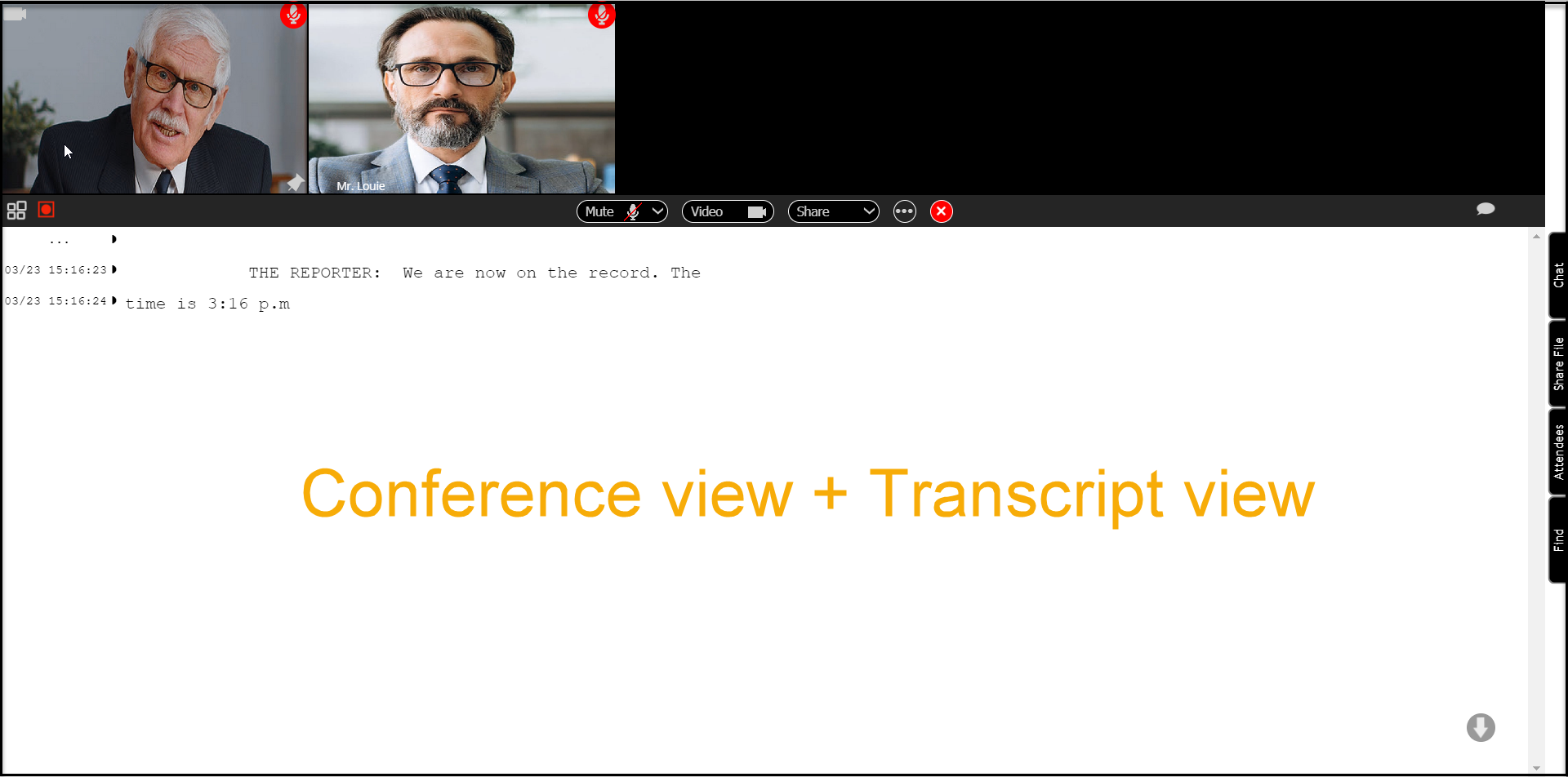
– OR –
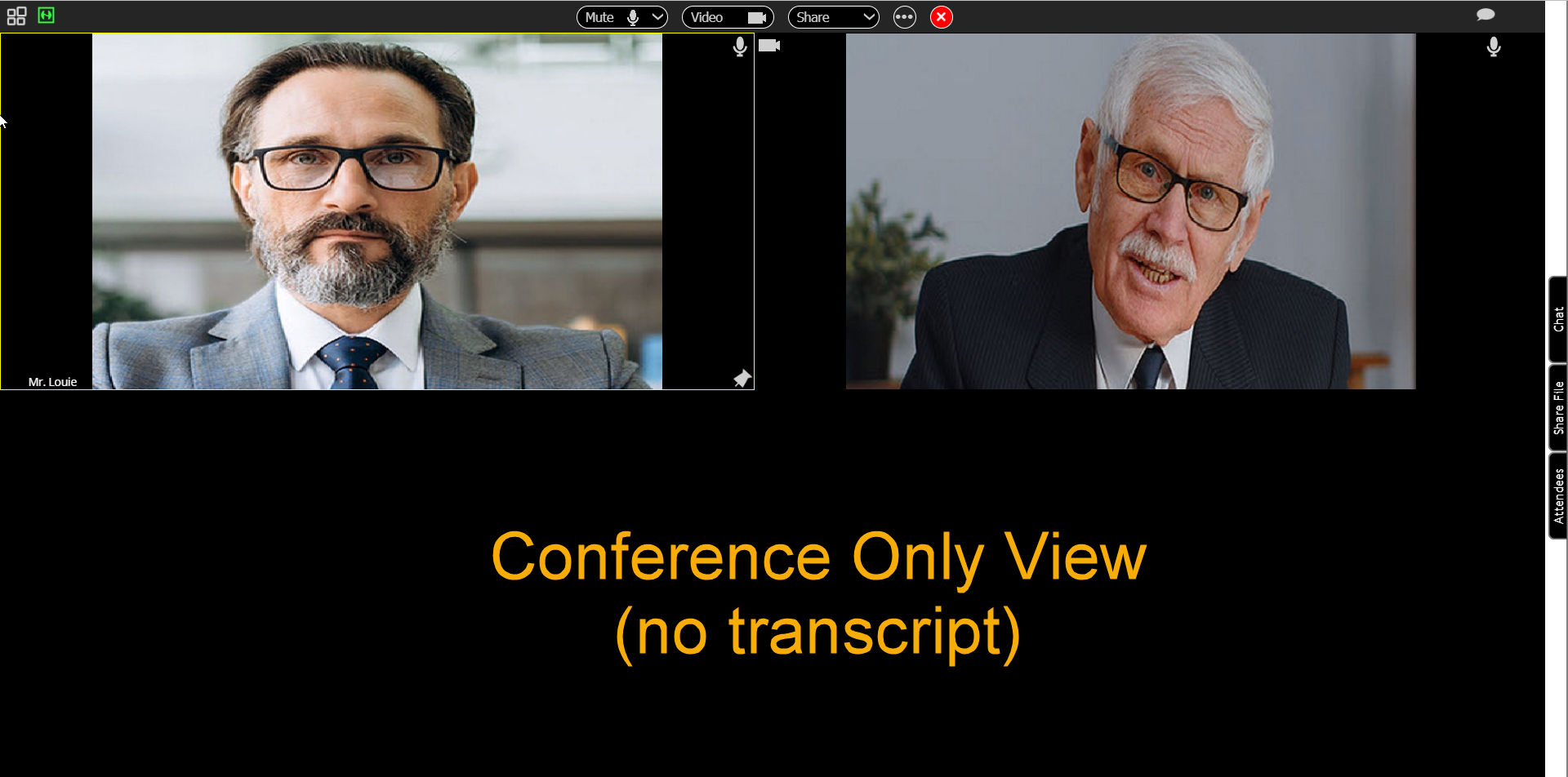
-
Viewing Exhibits
During a deposition, attorneys may present exhibits. You will see them on your screen along with the videos. As a witness, you do not have to perform any functions, but you will be asked questions about the exhibits as they relate to your case.
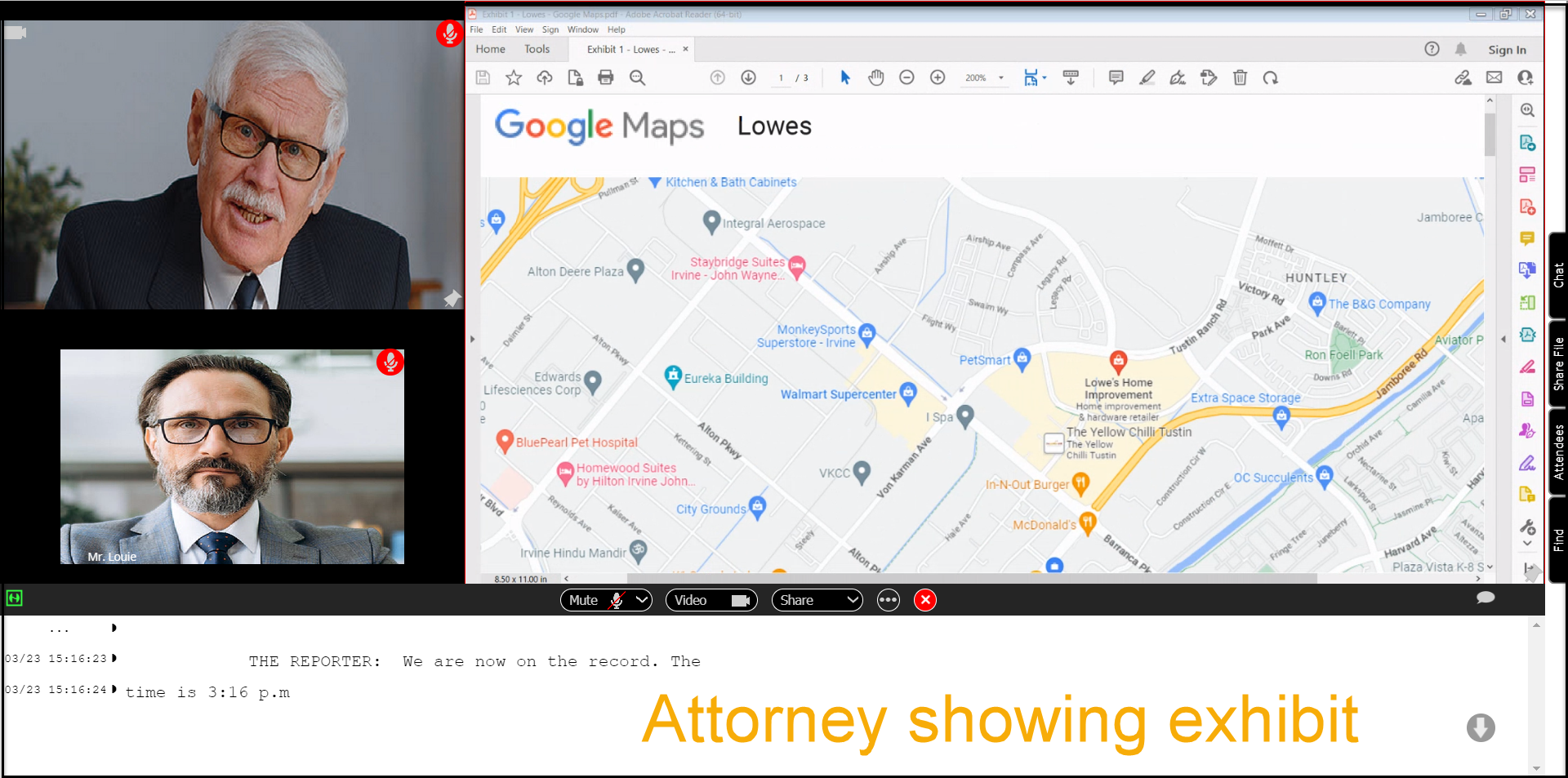
-
Sharing Your Screen
As a witness, if you are given sharing permissions, you may be asked to share your own screen. Choose the Share option, then Share screen.
-
Breakout Rooms
Private, off-the-record meetings can be held with attorneys and clients. The host or reporter will initiate the breakout rooms if and when appropriate.
- When you are sent to a breakout room, the background will become red. Breakout rooms are off the record and are never recorded.
- You can leave the breakout room when finished.
-
Leave or Exit conference
When the meeting or deposition concludes, use the leave room icon to exit the meeting.
Attorney Features - Part 1
(Watch the Attorney Features - Part 1 video)
Sharing Your Screen
Use the Share Screen option to share exhibits on your screen. Here are the options to choose from:
- Entire Screen: This is the quickest and easiest method, however this can lead to you accidentally sharing incorrect or private information since your entire screen is shared.
- Window: Sharing an open window. This is the most common option. Remember, you will need to open the exhibit first before it becomes a shareable item.
- Browser: Allows you to share any open tab on your browser. Use this option if your exhibit is open in a browser tab.
- Example: First, open the exhibit. Choose the Share Screen option. Choose the Window option. Choose the exhibit. Your exhibit is now being shared.
PRO TIP: When using Screen Share to display exhibits, the exhibit may cover your DepoDash viewing screen. Use Picture-in-Picture mode to view the witness/deponent. This allows you to see both the exhibit and the witness at the same time. A second monitor to display exhibits is also ideal.
- Use the Stop Sharing button to stop sharing the screen.
Share File
Share file allows attorneys to upload and publish exhibits during the proceedings. Files that are published are downloadable by participants with given permissions.
- Choose the exhibit
- Upload the exhibit
- Publish the exhibit
- The exhibit can now be downloaded on other participant’s screen when they choose the Share File tab.
- You may also unpublish and/or delete the exhibit at any time.
-
Find
Find or Search allows you to find keywords or phrases throughout the testimony. Clicking on any result will take you to that location in the testimony. This is helpful and ideal for adding in annotations.
-
Request Readback
As in a live deposition, readback is conducted by the host or reporter. Simply ask the court reporter to readback or playback any previous testimony. The reporter will locate the desired area in the transcript and play it back for attendees to hear.
-
Request Breakout Room
Private, off-the-record meetings can be held with attorneys and clients. Attorneys can simply request a breakout room from the host or reporter.
- The host or reporter will send you and your witness into a private breakout room.
- The background will become red when you are in a breakout room.
- You can leave the breakout room when finished.
-
Leave or Exit Conference
When the meeting or deposition concludes, use the leave room icon to exit the meeting.
Attorney Features - Part 2
(Watch the Attorney Features - Part 2 video)
-
Attorney Annotations
In real time, attorneys can add annotations to the transcript by either marking keywords using the spacebar or typing in their own comments on-the-fly.
- First, turn on Display Annotations from the Settings button
- You can also press 0 through 9 on your keyboard to choose a category. The annotation number will be displayed in the upper right corner. This annotation number refers to issue codes explained in the next section.
- Use the spacebar to mark an annotation on-the-fly or click on any word to annotate anywhere in the transcript.
- Annotations can be modified or deleted at any time by re-clicking the annotation. You can also type in your own words for your reference.
- The attorney can always download annotations at any time. Downloading and exporting annotations is explained in the next section.
-
Attorney Issue Codes
Issue codes is another feature that allows attorneys to easily categorize spots in the transcript that pertain to certain subject matters, objections, or other notations.
- These are completely customizable. Choose the Settings button - Change Highlighter Labels.
- To use issue codes, simply press 0 through 9 on your keyboard. This will update the Issue Code number in the upper-right corner. Issue codes are used to categorize each annotation for easy reference.
- For example, you can put issue codes in for “Instructed not to answer” by pressing 2 to change the issue code category and then using the spacebar to mark it.
- Pro Tip: Pressing the spacebar once or clicking on a word marks the words spoken whereas double-clicking or pressing the spacebar twice allows you to type your own notes into the annotation rather than simply marking the words. This allows for extremely fast and efficient note-taking.
-
Export Annotations and Rough Drafts
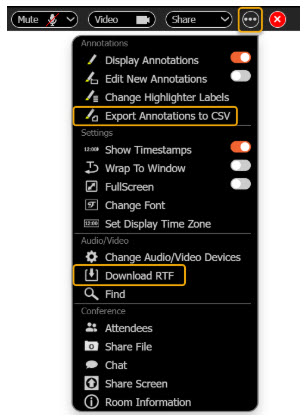
All annotations and issue codes can be exported to a CSV file at any time for easy reference.
Rough Drafts can be downloadedwhen given permission by the host or reporter. Rough drafts are in RTF format, compatible with MS Word, other word processors, and CAT (Computer-Aided Transcription) systems.
Editor Features
-
Edit Transcript with Audio
-
- A separate editor, scopist, or proofreader can edit the transcript in the background with audio and is typically not part of the meeting.
-
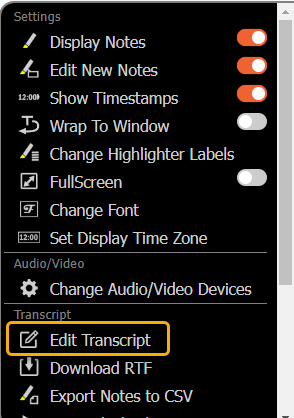
- Open the Editor mode by choosing the Settings button, then choose Edit Transcript.
-
- Audio can be used at any time to assist with editing.
-
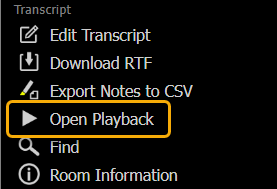
- Open the Playback mode by choosing Open Playback.
To play audio, Click on any timestamp and press the Play button in the bottom right corner.
Click on any other timestamp to play that position in the transcript at any time. Playback is synchronized to the transcript.
Editing is done paragraph by paragraph. We suggest using CTRL+arrow keys to move around faster. The paragraph you are currently editing will have an orange background.
Press F1 for a list of more helpful commands.
Additionally, multiple editors, scopists, or proofreaders can be used, all at the same time.
When finished editing a paragraph, press CTRL+S to save and refresh all participants’ transcripts.
Reporter or Host Features
Multi-Speaker Diarization
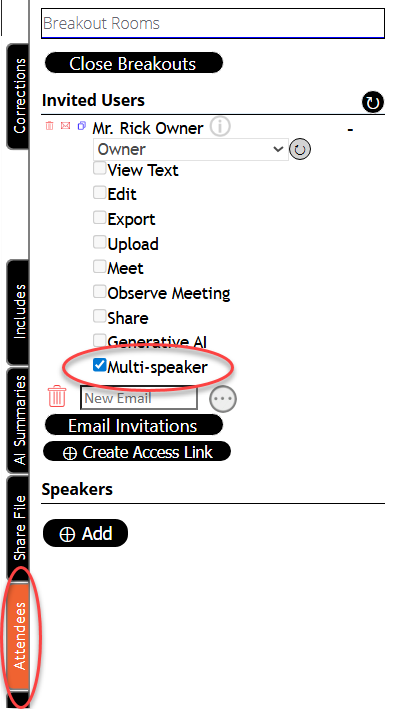
- For speakers in the same room space (i.e., not remote), DepoDash uses its feature called multi-speaker mode.
- Multi-speaker mode allows DepoDash’s translator to separate each person’s voice by using their tone and other vocal characteristics.
- Turn on multi-speaker from the sidebar, Attendees tab
Reporter Features - Part 1
(Watch the Reporter Features - Part 1 video)
-
On/Off the Record
- The reporter can easily put the proceedings on or off the record at any time using this button. On the record means audio and video are being recorded. The red record icon will be flashing during recording. Going off the record turns off the recording.

-
Mute All or Individuals
When necessary, the reporter can mute any or all participants in order to address the attendees and maintain order in the deposition.

-
Automatic Speaker Identification
Speakers are automatically identified by DepoDash. With DepoDash’s automatic speaker channel separation, reporters DO NOT have to identify speakers as they talk!
Question/Answer Mode is automatically detected once the attorney starts his or her questioning of the witness or deponent.
-
Annotations
Court reporters can instantly annotate the transcript in real time on-the-fly with one-touch annotations. Annotations are very fast and easy to do. Remember, no speaker identification is needed!
In real time, reporters can add annotations to the transcript by either marking keywords using the spacebar or typing in their own comments on-the-fly.
- First, turn on Display Annotations from the Settings button
- Use the spacebar to mark an annotation on-the-fly or click on any word to annotate anywhere in the transcript.
- Pro Tip: Reporters should turn on “Edit New Annotations” for faster one-touch annotations. This allows the reporter to type in annotations quickly.
- Annotations can be modified or deleted at any time by re-clicking the annotation. You can also type in your own words for your reference.
- Annotations can be downloaded at any time by going to the Settings button and choosing Export Annotations to CSV.
-
Instant Include Files
Discussion Off the Record, Exhibit marked, Interruption in the proceedings, Recess taken, or any other blurb chosen by the reporter can be inserted on-the-fly into the transcript.
Choose the Includes Tab on the right hand sidebar.
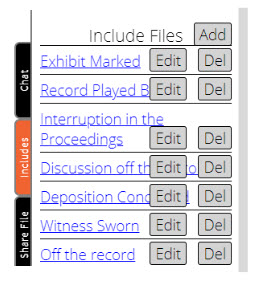
Choose Add to create a new Include File (template), Edit to modify an existing Include File, or Delete to remove an Include File.
Reporter Features - Part 2
(Watch the Reporter Features - Part 2 video)
-
Readback
Readback (playing audio) can be performed at any time while on the record, allowing attendees to hear what was spoken. Simply choose the desired start and end timestamps and choose “Readback”
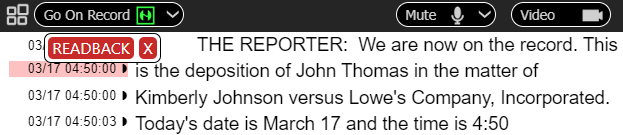
Pro Tip: For efficiency, simply double-click the desired timestamp to read back from. Click STOP to stop the readback.
-
Edit Transcript with Audio
- Reporters can edit the transcript at any time, for example, on a short break.
- Open the Editor mode by choosing the Settings button, then choose Edit Transcript. When in Editor mode, the menu bar will become green.
- Audio can also be used at any time to assist with editing.
- Open the Playback mode by choosing Open Playback.
To play audio, click on any timestamp and press the Play button in the bottom right corner.
Click on any other timestamp to play that position in the transcript at any time. Playback is synchronized to the transcript.
Editing is done paragraph by paragraph. We suggest using CTRL+arrow keys to move around faster. The paragraph you are currently editing will have an orange background.
Press F1 for a list of more helpful commands.
Additionally, multiple editors, scopists, or proofreaders can be used simultaneously.
When finished editing a paragraph, press CTRL+S to save and refresh all participants’ transcripts.
Initiate Breakout Rooms
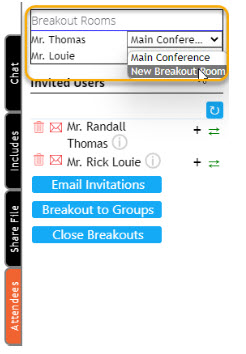
When requested by attorneys, reporters, or hosts, attendees can send reporters to private breakout rooms for off-the-record discussions.
- Select the Attendees tab, then choose the breakout room for each attendee.
- In a breakout room, the background will be red. Either the host or the attendee can return you to the main room.

Reporter Features - Part 3
(Watch the Reporter Features - Part 3 video)
-
Attendee Status Monitor
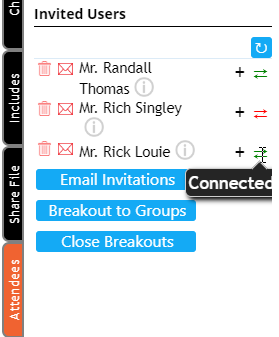
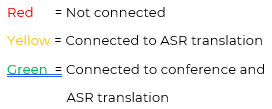
Reporters and hosts can use the Attendee Status Monitor to check and verify each attendees’ connection status during the meeting.
-
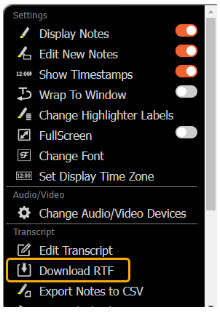
Download RTF
Reporters can export the transcript in RTF format, which is compatible with Microsoft Word, other word processors, and any CAT software. Export to CAT software includes **synchronized text and audio** to allow for easy editing and finalizing of the transcript.
-
Permission Controls
Reporters/hosts have 100% complete control over all attendees’ permissions. Permissions include sharing the screen, uploading exhibits, viewing the transcript, saving RTF files, editing the transcript, and participating in the meeting. Each of these permissions can be changed at any time.
View Text:** allows the viewer to see the transcription.
**Edit:** allows the viewer to edit the transcript.
**Export:** allows the viewer to download an RTF copy
**Record/Transcribe:** allows the viewer to control on/off the record. This is limited to the host or reporter.
**Upload:** allows the viewer to upload files or exhibits.
**Meet:** allows the viewer to participate in the video portion of the meeting.
**Share:** allows the viewer to share the screen.
-
Open/Close meeting
Remember, the reporter or host can open the meeting at any time, even before and after the meeting has taken place.
-
Invite Attendees
If an attendee needs to be added or reinvited, the host or reporter can send an invitation at any time during the deposition.
-
Set Conversation Mode
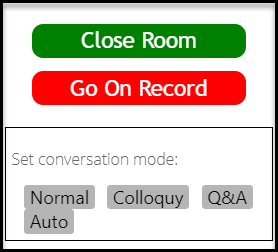
In the Control Panel, reporters or hosts can set the conversation mode:
-
- Normal - Speakers are not indented and all speakers are listed with their names.
- Colloquy - Speakers are indented and THE REPORTER and THE WITNESS terminology is used in place of speaker names.
- Q&A - Forces Q/A mode for attorney/witness
- Auto - This is the recommended default setting. Automatically switches between Colloquy and Q/A mode.
Creating a Rough Draft from audio files
Creating a rough draft from an audio file consists of four easy steps:
- Upload the audio file,
- Identify the participants,
- Change to the Question/Answer format, and
- Download the rough draft.
-
Upload Audio File
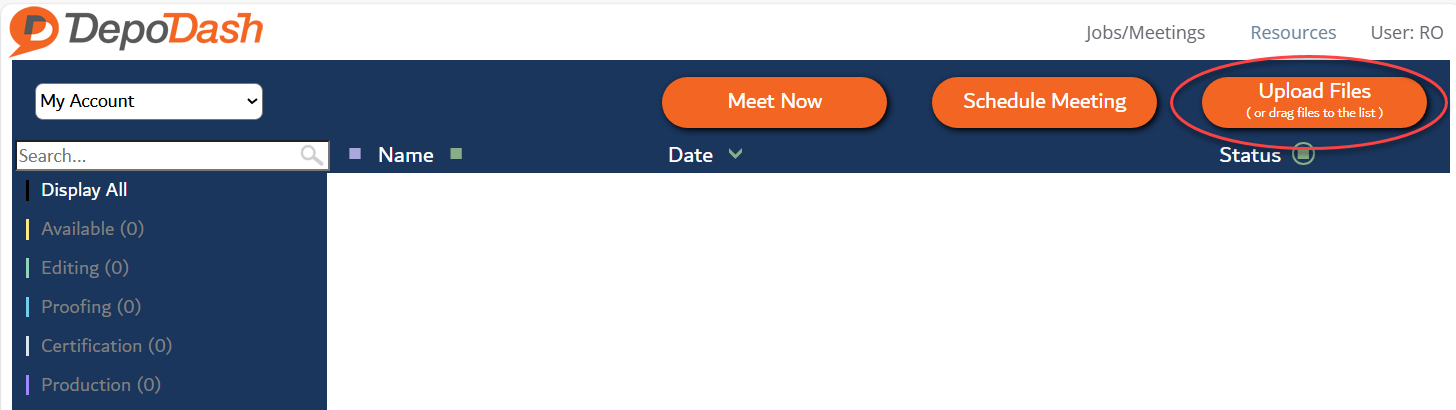
- Upload your audio file here. You can also drag and drop audio files into the white area. Click Upload All once you have selected the files.
- Open the file and select the Attendees tab in the Sidebar.

-
Identify Speakers/Participants
- Step 1: Add Participant Info for each person and assign them a role.
NOTE: It is important to choose the proper roles of the attorneys and witnesses because these roles help determine the placement Q/A/Colloquy paragraphing.
Here is an example:
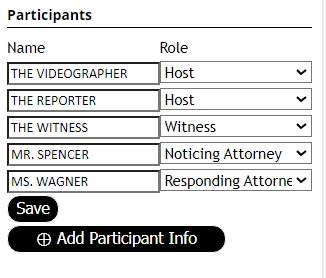
Choose Save.
- Step 2: Click on each SPEAKER A, B, C, etc. to identify them by name.
Here is an example:
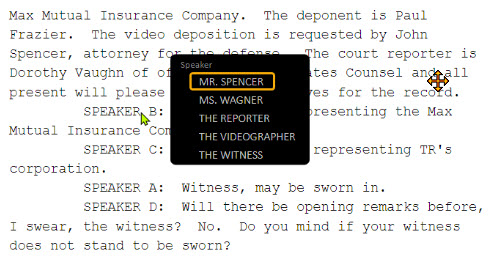
From that point forward, each time that person speaks, they will be identified by their proper name.
HINT: Double-click in the time stamp column in order to do a Readback so you can hear each speaker, if needed.
-
Change to the Question/Answer format
-
-
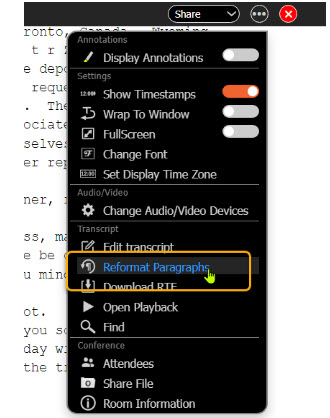
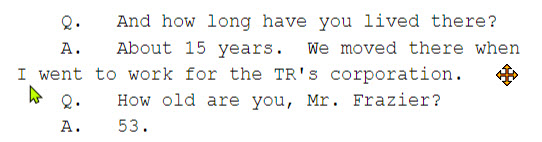
- Once the speakers have been identified, we will reformat the paragraphs in order to recognize the Q/A format.
- Go to the three-bar menu and choose Reformat Paragraphs.
-
Your transcript will now be in Q/A format when the attorneys are asking the witness questions.
Exit the conference room transcript and go back to My Rooms.
Download the Rough Draft RTF
- If necessary, wait until the status says “CLOSE” or “READY.”

- Choose Download to download an RTF copy of your transcript.

The RTF file is compatible with MSWord and CAT systems.
-
Synced audio available
Synchronized audio is also available via a Media Converter tool provided by DepoDash. Synchronized audio can be used with any CAT system.
Editing and Export Options
DepoDash can export your transcript in multiple formats according to your needs.
-
RTF for MSWord
- Rich Text Format is MSWord compatible. Simply double-click the file to open it in Microsoft Word. Download this file either from the 3-dot menu inside the transcript or the Download button on your list of rooms screen.
CAT System with synchronized audio - Users of CAT (Computer Aided Transcription) systems can download the RTF transcript and audio and import it into their system. A special download tool will be provided to you.
Winner Lite with synchronized audio - Use DepoDash’s full-featured editor to produce your final product.